


Why simple logins matter for everyday work
In many South African small businesses, the person who keeps the books, answers the phones or handles stock is not the same person who likes fiddling with settings. If logging in feels awkward, they put off the task, write details down, or ask a colleague to do it for them. That slows the day down and creates avoidable risk.
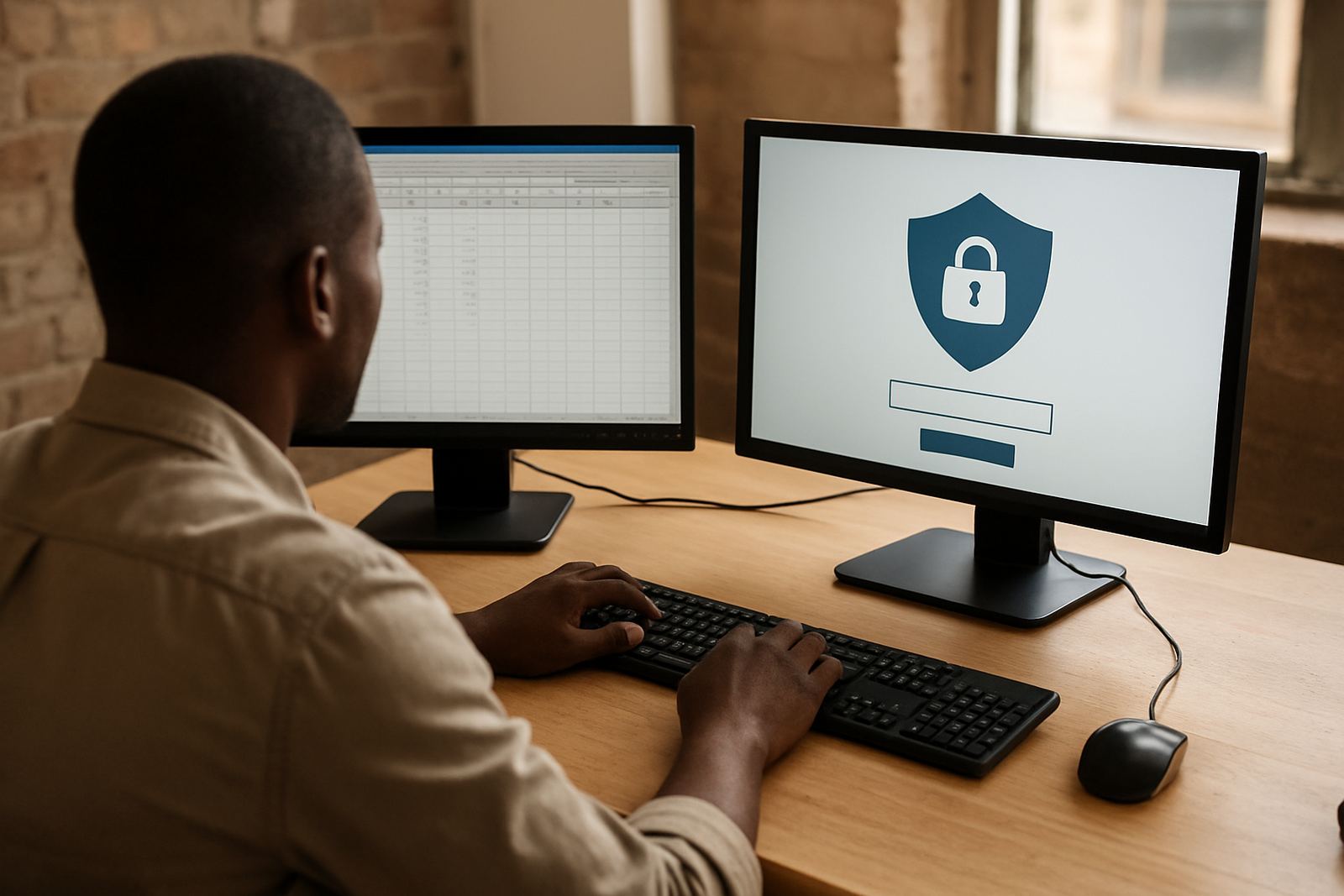
For nontechnical users, the goal is not to give them more security steps. It is to make the secure way the easiest way. When the process is clear, people are more likely to sign in correctly, use the right application, and keep going without interruptions. That matters whether your team is in Woodstock, Pretoria, Durban or working from home in a smaller town with a patchy signal.
We often see the same pattern. A team has a mix of message, payroll, accounting and client systems. Staff use a few passwords often and a few only once a month. After a while, the login process becomes guesswork. A better setup gives each person one place to start, with the right access already assigned, so they do not have to remember which password goes where.
Make the first login feel familiar
When onboarding nontechnical staff, keep the first experience short and predictable. If the first week includes too many steps, people stop asking questions and start making their own workarounds. A good rollout should feel like a guided routine, not a technical exercise.
- Give each user one clear starting point for access.
- Use plain language in setup instructions, not jargon.
- Keep the steps in the same order for every new starter.
- Show where to find help if they get stuck.
- Test the process on a phone and on a laptop, since some staff use both.
At 1Pass, the setup is planned around how the business actually works. That includes the tools staff use daily, the approvals they need, and who should have access to what. If the process is too clever, people ignore it. If it is practical, they use it without thinking twice.
Reduce calls for forgotten passwords and locked accounts
Help requests usually spike when people are tired, busy or under pressure. A cashier can be dealing with a queue, a finance clerk may be on a deadline, and a manager may be moving between meetings. In those moments, nobody wants to hunt for a note book or wait for an admin to reset a login.
Password management helps by storing credentials securely and making them easy to reach when needed. SSO takes it one step further by letting users sign in once and then move between approved systems without repeating the same process over and over. For nontechnical users, that means fewer time-outs, fewer mistakes and less back-and-forth with support. It also helps during load-shedding when people resume work after a short interruption and need to pick up quickly.
A good rule is to remove friction where it is unnecessary, but keep control where it matters. People should not be able to see more than they need. They should only get access to the systems linked to their role, and nothing else.
Train people in plain language, not IT language
Training works best when it matches the way people talk at work. A nontechnical user does not need a lecture on authentication methods. They need to know what to click, what happens next and who to contact if something looks unusual.
We recommend short sessions that focus on real situations. For example, what to do when a password has expired, how to use the sign in page on a new device, and how to recognise when an approval is needed. Keep it practical and repeat the same steps for every group. That helps staff remember the process long after the session ends.
- Use screenshots or screen-sharing for common tasks.
- Explain one process at a time, not the whole system at once.
- Show the difference between personal access and shared team access.
- Give examples from daily work, such as payroll, sales or stock control.
- Allow time for questions, even the simple ones.
We also find that a calm, repeatable rollout lowers resistance. People are more comfortable when they know this is about making work easier, not about checking up on them. That small difference matters alot.
Use role-based access so staff only see what they need
Many login frustrations come from poor structure, not from the users themselves. If everyone shares one set of access rules, people end up wading through tools they never use or waiting for someone to unlock the right page. Role-based access keeps things simpler.
For a small business, this can mean one setup for the admin team, another for finance, and another for operations. A user only sees the applications linked to their job, which cuts down confusion and lowers the chance of accidental access to the wrong information. It also makes offboarding easier when someone leaves or changes roles.
Permission mapping and vault structure design are especially useful here. When the structure is set up properly from the start, nontechnical users do not need to understand the back-end logic. They just follow the same clean path every time. In a busy office in Cape Town or a remote team working from Gauteng, that consistency is what keeps the day moving.
Support after rollout keeps the process working
Even a well-planned rollout needs follow-up. New staff join, systems change, and people forget steps if they do not use them often. Ongoing support helps keep the login process steady instead of letting it drift back into old habits.
Quarterly access reviews are useful for checking who still needs access and who does not. That is especially important in smaller teams where people often wear more than one hat. A sales coordinator may also help with admin, or a branch manager may need temporary access to another system during leave cover. Those changes should be recorded and reviewed, not left to memory.
For businesses in Johannesburg, Pretoria, Durban, Gqeberha and beyond, remote onboarding and support mean staff can be guided without waiting for an in-person visit. If someone gets stuck, the fix is usually much faster when the process was designed clearly in the first place. That saves time for the team and keeps the pressure off internal staff who already have enough to do.
What a practical South African rollout looks like
A good example is a small business with 18 staff spread between Woodstock and a remote team elsewhere in South Africa. The office team needs easy access to core tools, while the remote staff need the same access without a pile of separate passwords. The owner wants better control, the manager wants fewer support calls, and the team wants to get on with work.
In that situation, the rollout would usually start with an initial security review, then platform setup, SSO configuration and user onboarding training. After that comes offboarding process design, so access can be removed cleanly when someone leaves. The result is not complicated for the user. They sign in, open the tools they need and carry on.
That is the point. Nontechnical users do not need a security system that shows off. They need one that is easy to learn, clear to use and dependable on an ordinary Tuesday morning when the power has flicked off and back on again.