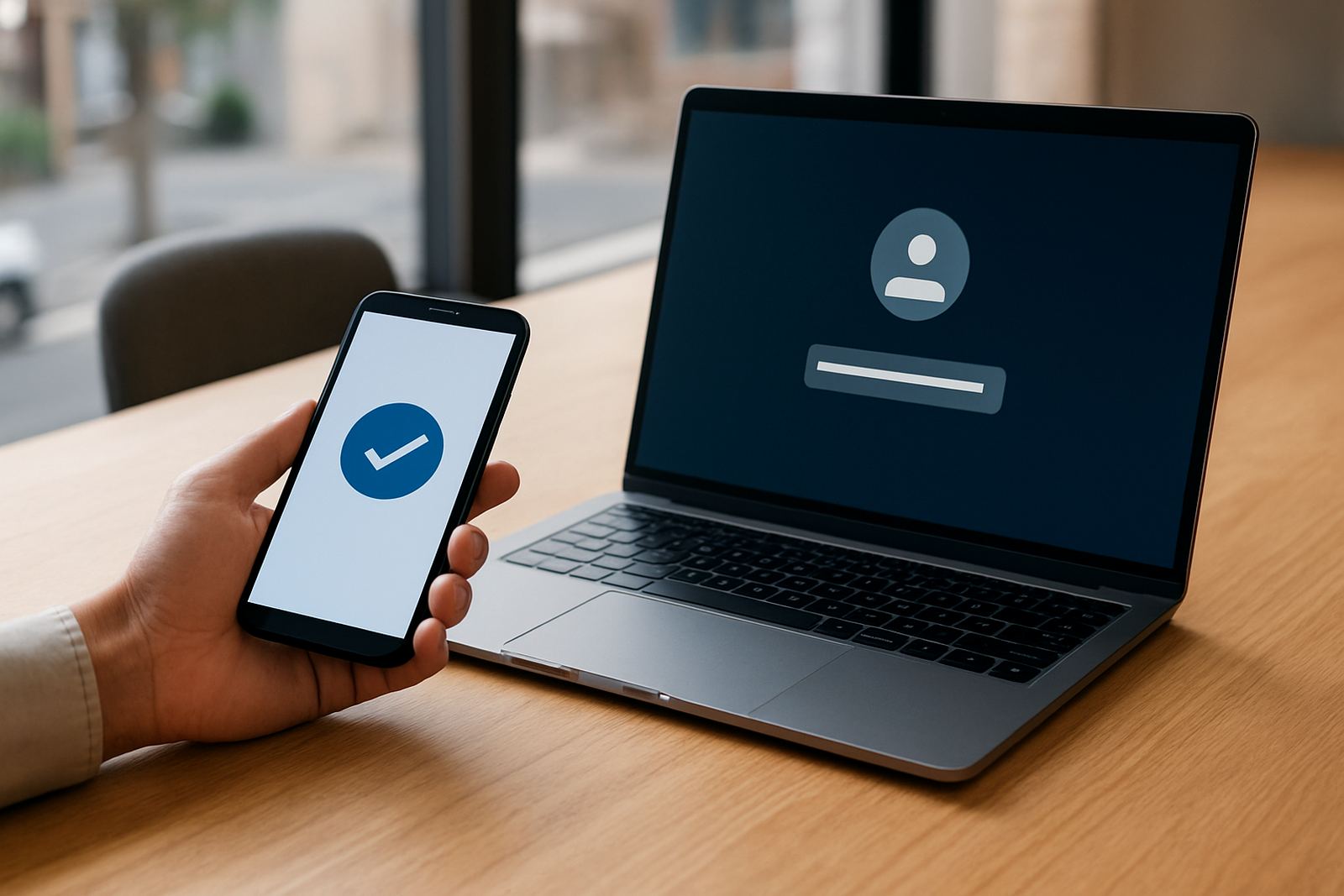


What Multi Factor Authentication does for your team
Multi Factor Authentication, often called MFA, adds a second step after a password. That second step may be a code from an app, a push approval, or a hardware token. If a password is phished, guessed, or reused from an old breach, the account still has another barrier in place.
For small business teams in South Africa, this matters when staff are working from the office, from home in Johannesburg, or while travelling between branches in Cape Town, Durban, or Pretoria. It helps reduce the chance of unauthorised access to finance tools, message, file storage, customer systems and admin panels. It is a practical control, not a complicated one.
Authentication methods and setup options
Different teams need different methods, so MFA should match the way people actually work. Some staff prefer a mobile app, while others need a physical token because they do not use a smartphone for work. For shared service accounts or higher risk logins, stronger methods can be assigned where needed.
- Authenticator app codes for everyday staff logins
- Push approvals for quick sign in on approved devices
- Hardware tokens for users without reliable mobile access
- Backup codes for recovery when a device is replaced or lost
- Conditional rules for high risk logins, locations, or admin users
Good setup keeps the process simple. Staff should not need to juggle too many steps each morning, and admin teams should be able to see who has enrolled, who still needs help, and where fallback access is being used.
Where MFA suits best in a small business
MFA is useful anywhere a login gives access to money, data, staff records, or client information. It is especially helpful for businesses with remote workers, multiple branches, or mixed office and field teams. In coastal areas like Gqeberha or Durban, where staff may use different devices and networks, that extra check is often worth having.
It also suits businesses that face regular staff turnover or onboarding. When roles change, access can be tightened instead of relying on passwords alone. That makes quarterly access checks much easier to manage, and it cuts the risk of old accounts staying open too long.
- Bookkeeping and payroll access
- Message and business communication accounts
- File sharing and document storage
- Customer portals and internal admin tools
- Remote work access and SSO protected apps
Setup, onboarding, and what your team needs
MFA setup is usually done remotely, so there is no physical installation, cabling, or special site work needed. You do need a stable internet connection for enrolment and login prompts, plus a compatible mobile device or token for each user who must authenticate. In most cases, staff can be onboarded in stages so daily work is not interrupted.
Before rollout, it helps to review current user accounts, admin rights, shared logins, and recovery options. We often map who needs access, who approves access, and what should happen if a staff member leaves. That planning saves time later and avoids lockouts during busy periods, which can be a pain during month end.
- Internet access for admin setup and user enrolment
- Smartphone or hardware token for each enrolled user
- Updated contact details for recovery and verification
- Clear user roles before permissions are assigned
- Plan for staff training and first login support
Care, servicing, and ongoing admin checks
MFA does not need regular physical servicing, but it does need routine admin attention. Tokens can be lost, staff phones change, and people forget to save recovery options. A small business should review enrolment status, failed login patterns, and any bypass access from time to time. That keeps the system clean and easier to support.
We recommend pairing MFA with quarterly access reviews, offboarding checks, and basic user refresher training. If a device is replaced after load-shedding damage or a phone upgrade, access can be reissued quickly. The aim is to keep protection in place without creating admin clutter.
What to check before you order
Before placing an order, check how many users need MFA, which apps must be protected, and whether any staff need an alternative to a smartphone. It also helps to confirm if you want MFA for every login or only for certain roles such as finance, directors, or system administrators.
Ask how recovery will work if a user loses a device, how new staff will be added, and who will manage access after hours. If your business has offices in Woodstock, Stellenbosch, Johannesburg or elsewhere nationwide, remote onboarding should be part of the plan from the start.
- Number of users to enrol now and later
- Devices available for each staff member
- Apps and systems that must be protected
- Need for admin-only rules or conditional access
- Recovery process for lost or replaced devices
1Pass MFA rollouts for busy teams
1Pass helps small business teams put MFA in place without making login admin harder than it needs to be. We handle the initial security review, platform setup, SSO configuration, permission mapping, user onboarding training, and ongoing support, so the rollout fits the way your team already works. From Woodstock to Pretoria, we support businesses across South Africa with remote onboarding and practical guidance.
Our approach is straightforward. We look at the accounts you use, the staff who need access, and the risks that matter most. Then we set up a process that protects key systems while keeping daily work moving. That balance matters for small teams with limited time and no room for avoidable lockouts.
Key facts
| Product type | Multi Factor Authentication for business logins |
|---|---|
| Primary purpose | Add an extra layer of login protection for staff accounts |
| Typical methods | Authenticator app, push approval, hardware token, backup codes |
| Best for | Small business teams, remote staff, admin users, finance access |
| Setup | Remote onboarding, account review, enrolment and admin configuration |
| Support coverage | Woodstock, Johannesburg, Pretoria, Durban, Gqeberha and nationwide |