

What Document Storage Does in 1Pass
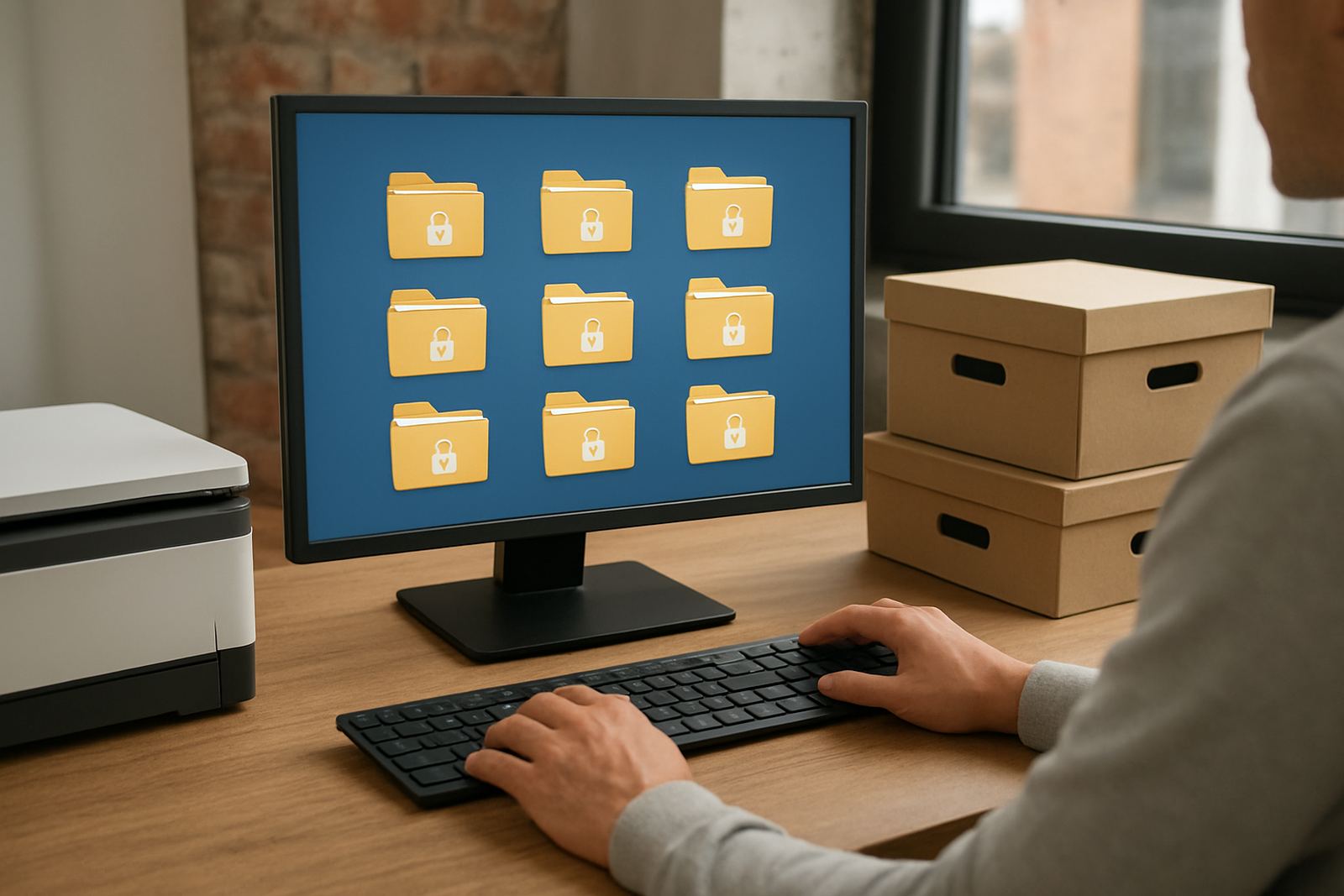
Document storage is for the files that sit around your access process: onboarding notes, recovery codes, handover checklists, admin procedures, licence copies, and the supporting records that help a team work properly. Instead of scattering these items across inboxes, cloud folders and private notes, you keep them in one protected place linked to the right people and permissions.
For a small business, that means less time hunting for the latest file and fewer mistakes when someone joins, changes role, or leaves. It also helps when load shedding interrupts the day and the team needs to pick up work again quickly, because the important records are already organised and easy to reach once you are back online.
The aim is not to replace your file storage everywhere else. It is to give access-related documents a controlled home next to the credentials and processes they support, so the business can stay orderly and secure.
Which Teams Use It Best
Document storage suits businesses that share systems across several people and need a clear process for who can see what. It is especially useful where admin duties are shared, staff move between sites, or new team members need to be brought in quickly without exposing sensitive records to everyone.
- Small office teams in Cape Town, Stellenbosch, Century City and Woodstock that keep password notes, access records and supplier admin together.
- Growing teams in Johannesburg, Pretoria, Durban and Gqeberha that need structured onboarding and offboarding.
- Remote and hybrid teams that want one source of truth for access documents instead of scattered folders.
- Businesses with contractors or seasonal staff who only need limited visibility for a set period.
It also works well for firms that deal with municipal compliance, landlord access, or client handover packs where a missing document can slow everything down. If your team often asks, “where did we save that file?” this setup usually pays for itself in saved time.
How Setup Works and What You Need
There is no physical installation, drilling or cabling needed. You only need a stable internet connection, up to date devices and the right admin access to set up your structure properly. No power or gas supply is required beyond normal office or home office use, so the service suits shared offices, repurposed back rooms and remote setups just as well.
During setup, the storage structure is usually built around how your team actually works. That might include departments, client groups, system folders, or access tiers. The objective is to keep the layout simple enough for day-to-day use, but controlled enough that private files do not get shared by mistake.
- Choose the folders or categories that need protection.
- Decide who can view, edit, or manage each file group.
- Set naming rules so documents are easy to find later.
- Add approval steps where sensitive files need sign-off.
For teams in areas with patchy connectivity or load shedding, the most practical approach is a lean setup with clear naming and limited duplication. That way there is less risk of different versions being saved in different places, which can cause confusion later on.
Sizes, Layout Options and Typical Capacity
Document storage is usually planned by team size and the number of systems or processes you need to support. A small firm with five to ten users may only need a simple layout for internal procedures and onboarding packs, while a larger team may need separate areas for finance, operations, client admin and technical access records.
The layout can be kept tight or expanded as the business grows. You might start with a handful of core folders and then add more structure as departments come online. That is useful for South African businesses that are still scaling, because you do not need to overbuild from the start.
- Small team setup: 1 to 10 users, simple folder tree, basic permissions.
- Growing business setup: 11 to 30 users, department-based structure, approval controls.
- Multi-site setup: separate views for branch teams, remote staff and head office admins.
- Process-heavy setup: files grouped by onboarding, offboarding, audits and access reviews.
There is no fixed physical size because the system is digital, but the amount of information it can support depends on how it is organised. In practice, a cleaner structure is better than a crowded one and it makes training much easier too.
Where It Suits in South African Business
Document storage suits businesses that need quick access to important files without giving everyone the same level of visibility. That includes agencies, professional firms, building-related businesses, franchise operators, and service companies that manage staff accounts across more than one location.
In coastal areas such as Cape Town and Gqeberha, teams often work with a mix of office and remote staff, which makes access control even more important. Inland, businesses in Johannesburg and Pretoria may have more systems tied to different departments, so structured storage helps keep files from becoming a mess after a busy hiring round. It also helps when staff are travelling, at client sites, or working off a laptop at home.
Because the service is digital, it suits offices of almost any size. The main requirement is that your team is willing to follow a clear process for saving, naming and approving files. Without that, even a good system can become cluttered over time.
Care, Servicing and Keeping It in Order
Good document storage needs routine care, just like any other business process. The files should be checked regularly, outdated material removed or archived, and permissions reviewed when someone changes role. If a staff member leaves, the related records should be reassigned properly so nothing stays open by accident.
Quarterly reviews work well for many small businesses. That is often enough to catch duplicates, outdated handover notes and old access instructions before they become a problem. If your team is busy with seasonal work or frequent staff changes, you may want to review it more often.
- Check file names for consistency.
- Remove duplicates and expired records.
- Review access after onboarding or offboarding.
- Confirm that only the right admins can change sensitive files.
Servicing here is mostly about process, not hardware. If the structure is clear and the permissions are reviewed on time, the system stays useful instead of turning into another folder no one wants to open.
What to Check Before You Order
Before setting up document storage, it helps to know which records need to be protected and who needs access to them. Ask yourself whether the files are for all staff, only managers, or just the people handling systems and admin. That will shape the folder structure and prevent over-sharing from the start.
You should also check how your current files are stored. If they are spread across message, local drives and shared folders, migration may need a bit more planning. A clean import is usually easier than trying to sort files after the new structure is already live. It saves time and reduces errors, especially in smaller teams where one person often handles several roles.
When ordering, make sure you confirm the following:
- How many users need access now, and how many may need it later.
- Which document types must be kept together with credentials or access notes.
- Whether any files need manager approval before changes are made.
- How offboarding should work when someone leaves the business.
- Whether your team needs remote onboarding support across multiple branches.
If you get these points right upfront, the setup is easier to maintain and the team is less likely to fall back on unsafe workarounds.
Key facts
| Product type | Secure document storage for access-related files |
|---|---|
| Typical users | Small business teams, admins, managers and remote staff |
| Access control | Role-based permissions with admin oversight |
| Deployment | Remote setup, no physical installation required |
| Power or gas needs | No special power or gas supply required |
| Maintenance | Regular file reviews, permission checks and offboarding updates |